pp.
45-47,50, 52, 53.;
pp.
45-47,50, 52, 53.;As the page about markup languages hinted, a web browser can view web pages even without a webserver.
And, we can create a web page with nothing fancier than a plain text editor.
Browsers and text editors are usually free.
pp.
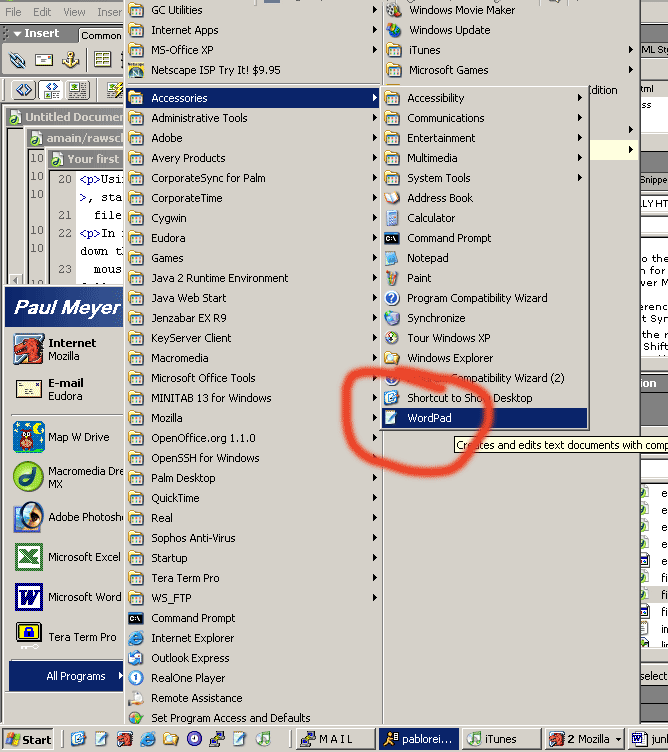
45-47,50, 52, 53.;Start it up by going to Start | All Program | Accessories | WordPad.
On PC's I recommend that you use WordPad (rather than NotePad)
because it can handle larger files, and as we eventually start to work on both
Macs and PCs, we'll find it's a bit more graceful than NotePad about handling
text files created on non-Windows computers.
Start it up by going to Start | All Program | Accessories | WordPad.
Keeping long lines on the screen. To deal with this, select View | Options | Text and set Word Wrap to "Wrap to window". (See a screenshot).
On a Mac you can use TextEdit as a raw text editor. However, you have to set your preferences once to have it "unhide" the tags when you open html files.
Copy and paste the text below into a blank Wordpad window.
<!DOCTYPE HTML PUBLIC "-//W3C//DTD HTML 4.01 Transitional//EN"
          "http://www.w3.org/TR/html4/loose.dtd">
<html>
<head>
<meta http-equiv="Content-Type"
      content="text/html; charset=UTF-8">
<title>This is the title</title>
</head>


<body>
<p>Your page content here</p>
</body>

</html>
<html>...</html> -- "Container" for all the html on this page.
<body>...</body> -- "Container" for the contents of the page--all the things that show up in the display area of your web browser.
<head>...</head> -- "Container" for all the info about this page, such as the page title, styles that determine how the content will display, eventually links to javascript files, summaries for search engines of the content.
Typically, we'll start with a page from the layout repository
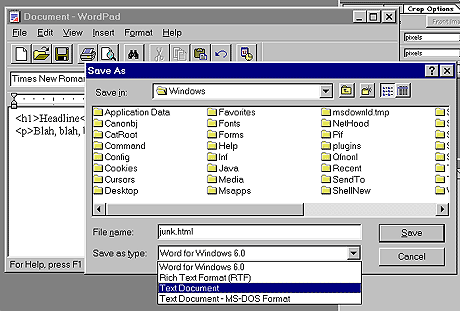
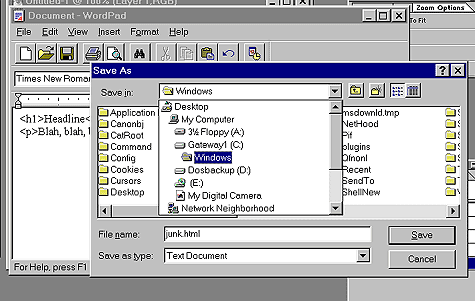
Save what you just created in WordPad on your M: drive (or on the desktop, with a Mac). Some things to keep in mind when saving files:
Go find the file with your browser.
Repeat the cycle you've begun of editing a web page: